QUICKSTART / iPhone · iPad
Shadowrocket Quickstart Guide
Import an existing configuration, then choose how to route traffic. After connecting, check the result with a test and a real access request.
01 / IMPORT
Add a server or import an existing subscription
Open Shadowrocket and find the SERVER group in Home, then tap Add Server. What you do next depends on the details you have: if you have parameters such as a protocol, host, and port, add a single server; if you have a complete subscription URL that updates a group of entries, choose Subscribe. Complete just one of these paths.
Adding a server manually: choose Type, then enter the fields
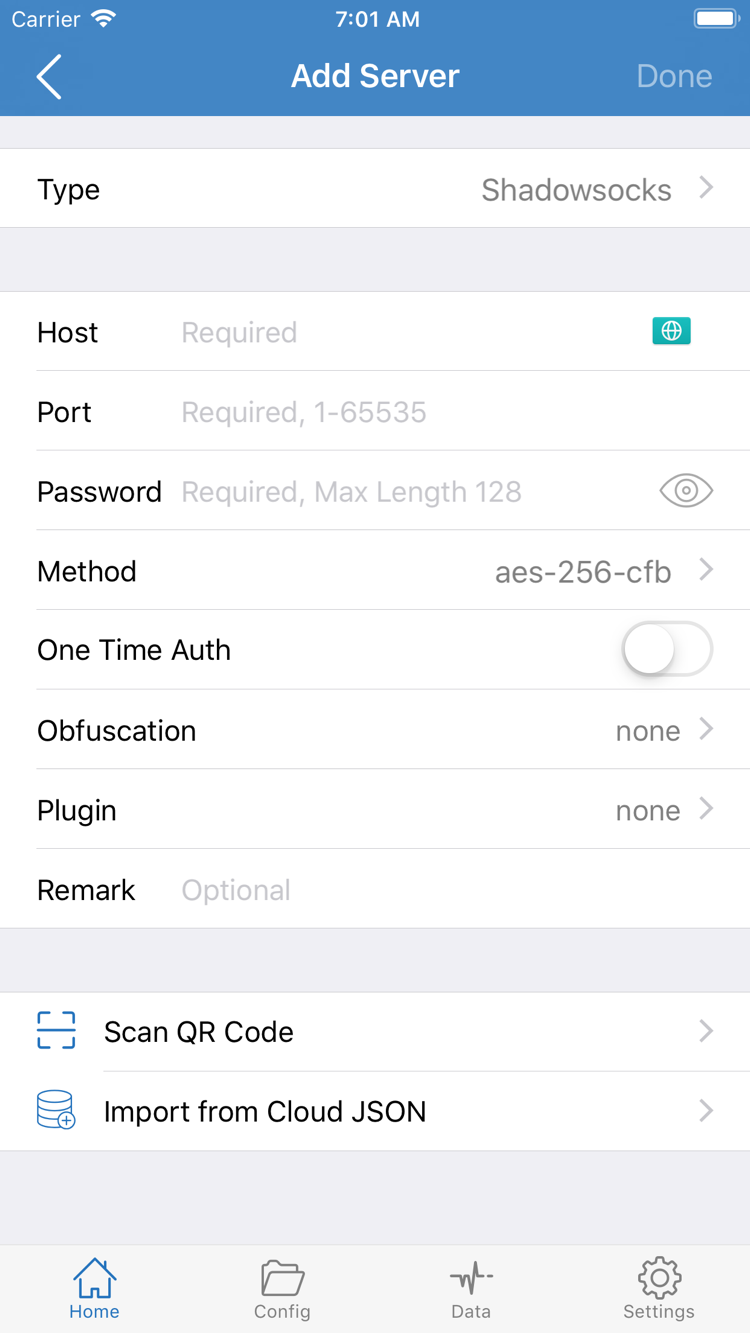
In Add Server, tap Type first and choose the protocol that matches your details. Then enter Host and Port. If the interface shows fields such as Password or Method, enter each value exactly as provided. Host and Port are separate fields; do not enter a complete URL containing a path in Host. The fields vary by protocol, so the screenshot is not a complete list of required fields for every protocol. If a required value was not provided, confirm it with the configuration provider instead of guessing.
Importing a subscription: keep the full URL
If you have a subscription link, choose Subscribe under Type in Add Server, paste the full URL into the link field that appears, then save. Query parameters at the end of the URL may be needed for authorization, so do not remove them. After pasting, check that no spaces or line breaks were added at either end. Return to Home and confirm that server entries appear under the subscription group. If you see only the group name and no selectable entries, check the subscription update result before trying to connect.
After importing, select a server you recognize in Home and check the selection indicator. If several entries have similar names, use remarks to tell them apart and avoid confusing new entries with old ones. At this point, you have only confirmed that the details were saved and a server was selected; this does not show whether the connection works. Next, set Global Routing to determine which traffic uses this server.
02 / ROUTING
Choose a Global Routing mode
Return to Home and open Global Routing. The selected server determines which connection is used when a proxy is needed; Global Routing determines whether traffic uses it. For the initial setup, choose a mode that matches what you want to test, then leave the other conditions unchanged.
- Config
- Match traffic against the rules in the currently enabled configuration file. Destinations matching
DIRECTconnect directly, while those matching a proxy policy use the corresponding proxy. If no earlier rule matches, the configuration'sFINALrule applies. Use this mode when you have a routing configuration and need to test different destinations separately. - Proxy
- Forward traffic handled by the client through the proxy. During initial troubleshooting, you can use this briefly to check whether the selected server can handle a test request, without changing rules at the same time. Restore your intended mode when testing is complete.
- Direct
- Traffic handled by the client connects directly without using the selected proxy server. Use this to compare how the same destination behaves with a direct connection. This does not turn off the connection switch; to make sure the device is not using this connection, return to Home and turn off the switch at the top.
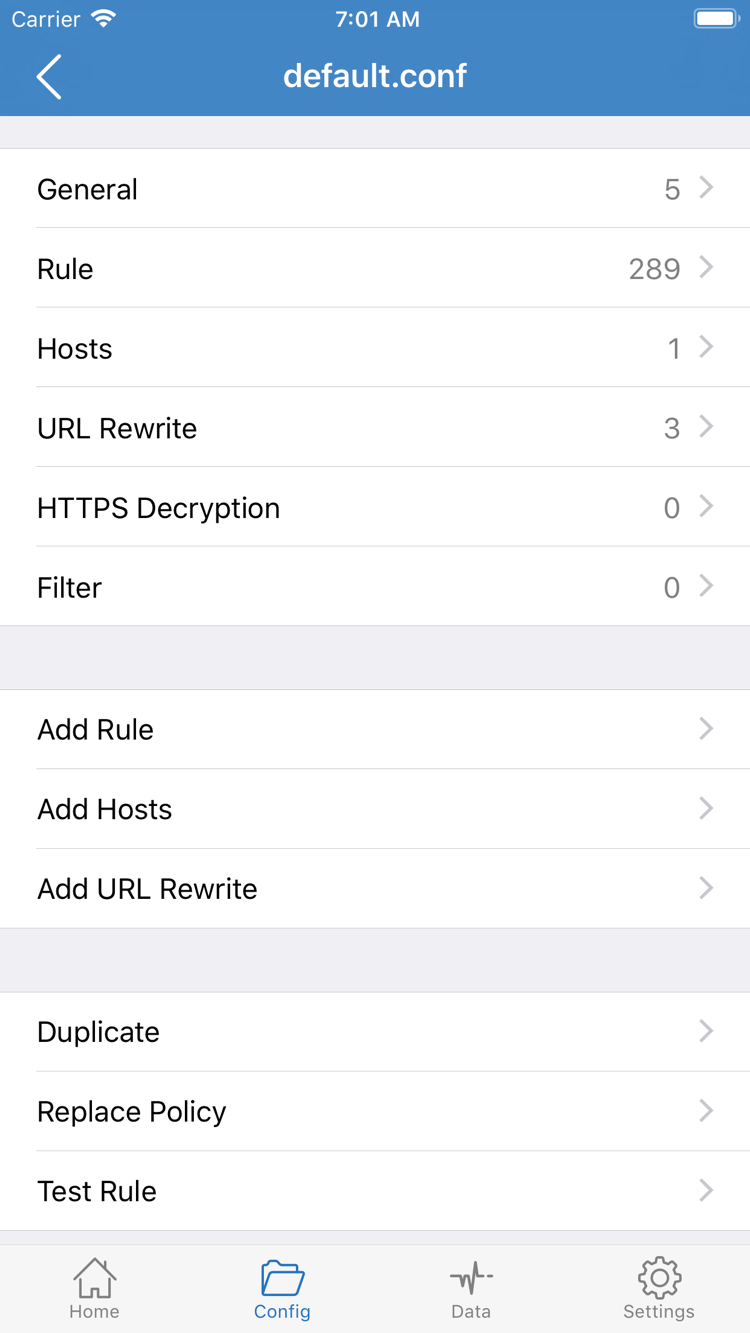
If you choose Config, open Config at the bottom and check which configuration is enabled. Config here is the configuration management screen; it is not the same control as the mode with the same name in Global Routing. Open the configuration editor and check Rule for rules that may match your destination. Rule order affects the result: once an earlier rule matches, a later rule does not take precedence simply because it looks more specific.
You do not need to tap Add Rule or change other sections for the initial check. Note the configuration name and the policy you expect to apply to each test destination, then return to Home and confirm the selected value in Global Routing. See the glossary for more on rule types, match scope, and policy terms.
03 / CONNECT
Turn on the connection switch in Home
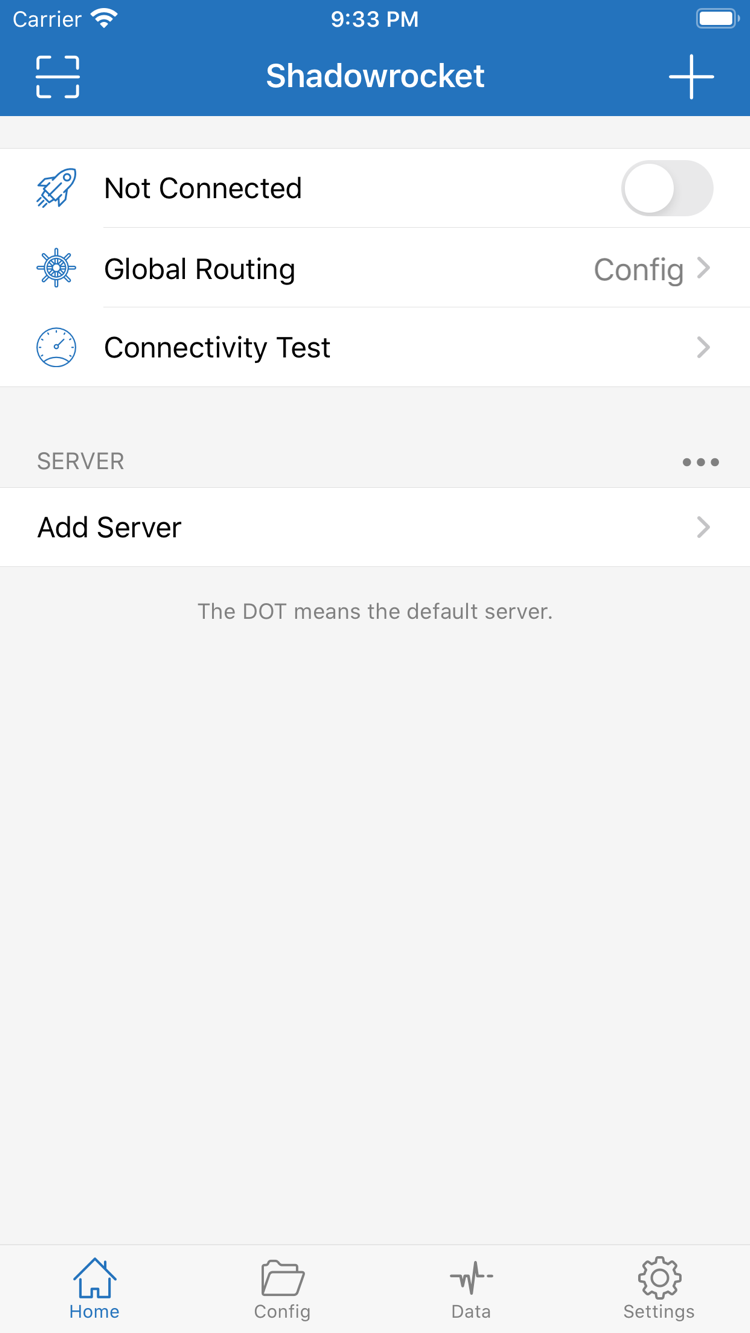
In Home, check two things first: the selected server under SERVER is the one you just verified, and Global Routing shows the mode you intend to use for this test. Then tap the switch next to Not Connected at the top. Do not use the Connectivity Test button below as the connection control.
For the first connection, the system may ask to allow adding a VPN configuration. Confirm that the prompt was triggered by the switch you just turned on in Shadowrocket, then follow the system prompts to authorize it. The system may ask you to verify your device. After authorization, return to Home, confirm the switch remains on, and check whether the status at the top has changed from Not Connected. If it switches off immediately, note the message instead of tapping repeatedly. If a managed device restricts VPN configurations, ask the device administrator which use is permitted.
A changed status at the top means the connection has started, but does not prove that the remote server is reachable or that an app's traffic is using a proxy. For example, a test destination under Config may match DIRECT. For the first verification, keep the network, server, and mode unchanged so the next test result is easier to interpret.
04 / VERIFY
Verify test results and real-world access
Tap Connectivity Test in Home and wait for the result before switching to another app. Note the network used, the selected server, and the displayed result. A test reflects the network conditions and test method at that moment. A successful result does not mean every destination is reachable, and a timeout does not by itself mean the subscription is invalid. If the test method differs between runs, do not compare the displayed times directly.
Next, use a browser or a familiar app to open a destination you know is available and that suits the current mode. Confirm that the page reloads or the app completes a real request. Do not rely on a tab that was already open; its content may be cached. With Config selected, test one destination expected to match DIRECT and another expected to use a proxy, checking each separately. Opening a direct-connection destination does not verify the proxy. With Proxy selected, start with one destination to avoid running simultaneous tests in several apps and making it hard to identify the source of a failure.
To compare results, note what happens with the connection on, then turn off the switch at the top of Home and request the same destination again over the same network. Restore your original settings afterward. Seeing a page load does not tell you which rule matched. If actual access differs from what you expected, return to Config and check the rule order and fallback policy. If both the test and everyday access behave as expected, keep the current settings; there is no need to repeatedly change the configuration to get a shorter test time.
05 / TROUBLESHOOT
Troubleshoot by failure stage
First identify whether the issue is with importing, connecting, testing, or actual access. Change one condition per attempt, then repeat the same action. If both Wi‑Fi and cellular data are available, you can keep the original settings and try once on the other network. Do not also switch servers, or you will not know which change made a difference.
Nothing appears after import, or the subscription update fails
Return to Add Server and check that you chose Subscribe, the URL is complete, and the device can access regular websites on its current network. If you see an authorization prompt, the link has expired, or an update leaves only an empty group, ask the link provider to confirm that the URL is still valid and that its contents are compatible with Shadowrocket. If existing entries still work, keep the old configuration; deleting and re-adding it should not be the first step.
The switch will not stay on, or the connection reconnects automatically
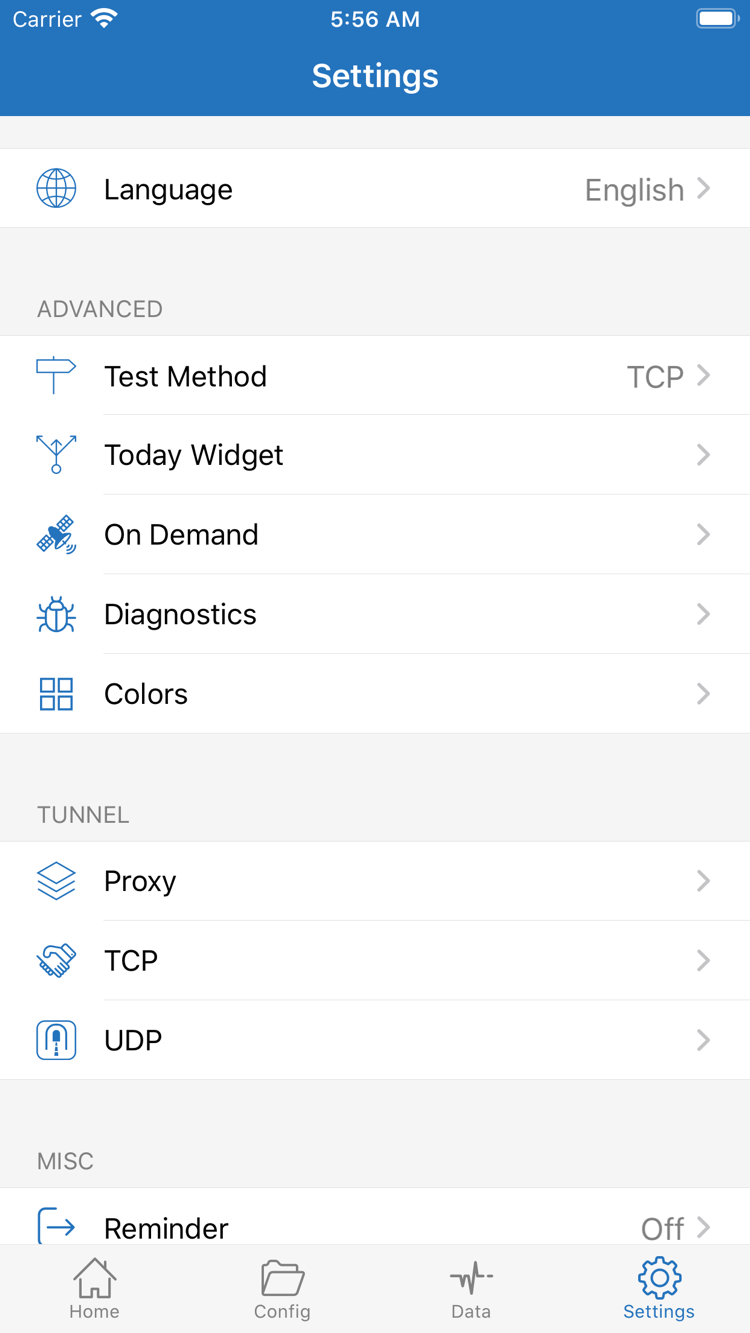
If the switch turns off immediately, check for an unfinished system VPN configuration prompt and see whether another VPN is already running or a device management policy applies. If it reconnects automatically after you turn it off manually, open Settings and check whether On Demand has conditions matching the current network. If you set those conditions, note their original values and temporarily disable them to test a manual connection. Restore them afterward if needed.
Connected, but Connectivity Test times out
Turn off the connection and confirm that the device can access the network normally. Then return to Home and check that the expected entry is selected. For a manually added server, recheck Type, Host, Port, and the authentication fields. For an imported subscription, first check whether it needs an update. Then open Settings, check Test Method, note the current method, and test again on the original network. If actual access works and only the test fails, do not rebuild all your configurations based on a single timeout.
Only certain destinations or apps have issues
If a destination works under Proxy but behaves unexpectedly under Config, check the active configuration, earlier rules, and FINAL first; do not switch servers right away. If both modes fail but other destinations work with the connection off, check the available information in Diagnostics under Settings, note the failure time and message, and contact the configuration provider. Share only the information relevant to the issue, and redact subscription URLs and authentication fields before making it public.