Before your first purchase, reinstalling on a new device, or opening a Shadowrocket link someone sent you, go to the App Store product page and check the developer, icon, and numeric ID in the URL. Search ranking, the icon, and the purchase button are not enough to confirm it’s the same app. If anything doesn’t match, don’t buy it or import a configuration.
Check these three details on the App Store product page
Use search results to find a possible match, then verify the product page you open. Don’t tap Get or the purchase button directly in the results: the developer name may be truncated, and you need the product page URL to check the App ID.
-
Open the product page
On your iPhone or iPad, open the App Store, go to Search, and enter the full name Shadowrocket. Tap an app’s name or icon in the results to open its details. If several similar results appear, don’t choose based on their order.
-
Check the developer
On the product page, find the developer name and check that it is spelled exactly Shadow Launch Technology Limited. If the full name isn’t visible at first, scroll down to Information and check the listed Seller. Don’t mistake a company mentioned in the subtitle or description for the developer.
-
Compare the official icon
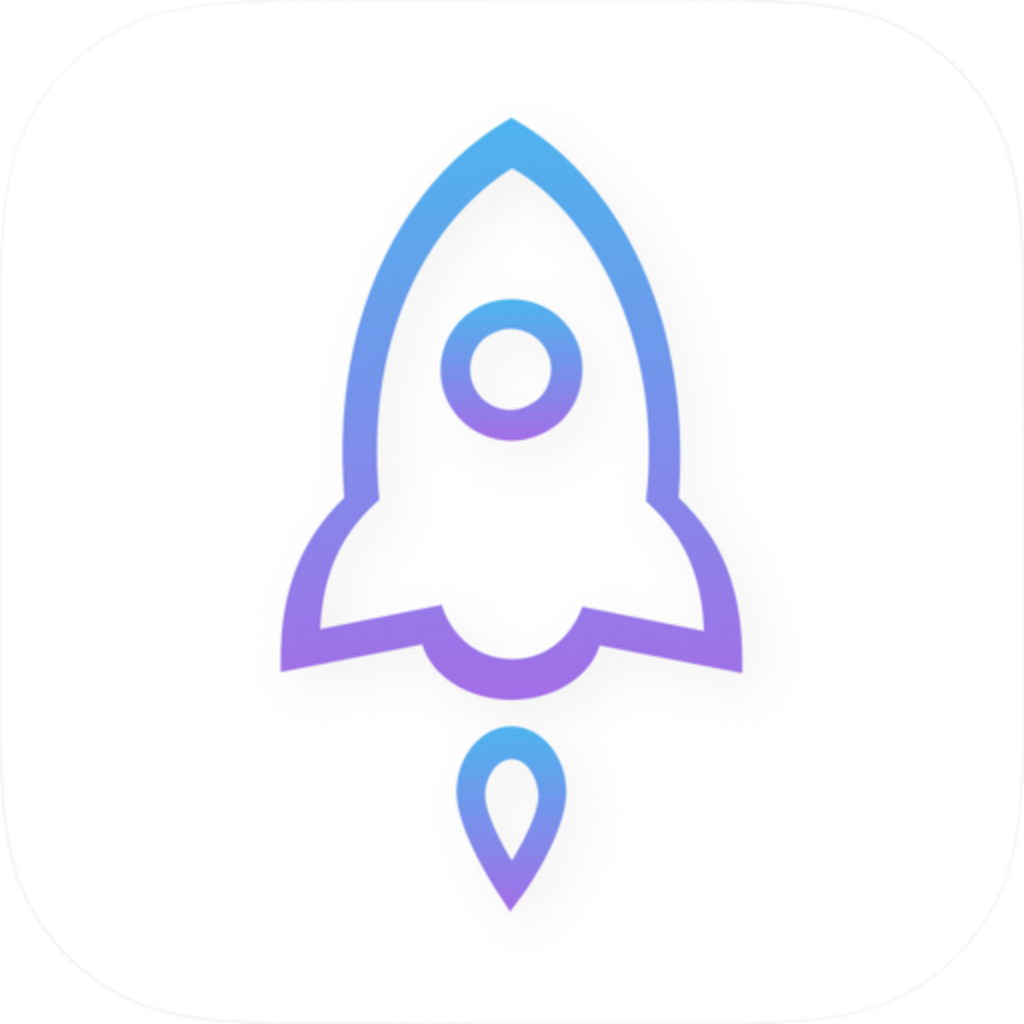
Check the app icon at the top of the product page against the official icon shown below: a rocket outlined in blue and purple on a white background. Compare the app icon itself—not artwork in product page screenshots or promotional images beside search results.
-
Read the ID from the link
On the App Store product page, tap the Share button and choose Copy from the share sheet. Paste the link into Notes on your device and expand it to view the URL. Check that the host is
apps.apple.comand the path ends inid932747118. You don’t need to send the link to anyone. -
Confirm how to get the app
Once all three details match, purchase or redownload from that product page. If you see a message that the app isn’t available in your account’s region or that your device doesn’t meet the requirements, note the exact message. Don’t switch to another app in the search results.
Where to find App ID 932747118 in the link
The product page title and icon are easy to spot, but you’ll usually need the share link to find the numeric ID. The US App Store product page URL is shown below for reference; the nine digits after id are the App ID.
https://apps.apple.com/us/app/shadowrocket/id932747118| Field | Example | How to check |
|---|---|---|
| Host | apps.apple.com | Check the actual host in the address bar, not the link title shown in a message bubble. |
| Region path | /us/ | This example points to the US storefront. A different region path does not mean it’s a different app. |
| Name path | /shadowrocket/ | The name makes the URL easier to read, but it doesn’t replace the numeric ID. Check each similar-looking result separately. |
| App ID | id932747118 | Check the full number in the path. If the link includes ?, the query parameters after it are not part of the App ID. |
Bottom line: Stop if the ID doesn’t match
Even if a candidate page is called Shadowrocket and has a rocket icon, leave the page if the number in the path isn’t 932747118. Go to the Download page, open the App Store product page for iPhone / iPad, and check again.
If someone sends you a shortened link or a screenshot of the product page, don’t rely on the preview. A screenshot only shows what was on screen when it was taken; it can’t tell you which page a link will open. The text on a short link isn’t the final URL either. If you can’t confirm where it leads, open the product page from the Download page instead of tracing a forwarded link.
Already installed it but unsure where it came from? Check your purchase history
The app name and icon on your Home Screen are no substitute for an App Store record, and the ability to add a VPN configuration doesn’t prove an app’s identity. If you already have a similarly named app installed, don’t enter server addresses, passwords, or subscription URLs into it. First, check the App Store for the corresponding acquisition record.
- Open the app’s details from your purchase history. In the App Store, tap your account avatar in the top-right corner, open Apps or Purchased, and search for Shadowrocket. The menu names may vary by system version. Open the details from the matching entry and verify the developer and numeric ID again.
- Know what the buttons do. On a verified product page, Open launches the corresponding app on your device; the cloud download icon redownloads it. If you opened an app from the Home Screen, return to the verified product page and launch it with Open to avoid tapping a similarly named app by mistake.
- Check your account if you can’t find a record. Make sure you’re using the same account that originally purchased the app from the App Store, then check your purchase history. The absence of an entry from your current account alone doesn’t prove that the app on an older device came from an invalid source.
- Restore the app and its configuration separately. Redownloading only restores access to the app itself. Before importing a configuration again, make sure you have a usable backup or the original connection details. If you entered real credentials in an app from an unknown source, contact your existing service provider to ask whether those credentials can be changed.
After confirming the app’s identity, separate connectivity checks from configuration checks
Verifying the product page tells you which app is installed; it doesn’t tell you whether the current configuration can connect. If a website won’t open after installation, first distinguish a general network issue from a rules or configuration issue. In Home → Global Routing, Direct and Config help check different parts of the setup. Note the current selection before switching.
Direct
RecommendedUse a direct connection as a baseline. Try a page that normally opens directly on your current network and see whether it still loads. If it also fails when disconnected, troubleshoot the device’s network first; there’s no need to change rules yet.
Best for: Establishing a direct-connection baseline during initial troubleshooting
Config
Use the policy selected by your current configuration’s rules. Before switching, check the file in use under Config. If no earlier rule matches, check which policy FINAL points to; don’t assume unmatched traffic goes direct.
Best for: Checking rule routing after importing your own configuration
Keep the network and test URL the same, and change only one condition at a time. If a direct connection works but the configured connection fails, first check which rule matched the request and which policy it selected, then check the connection used by that policy. Restore the original Global Routing selection when you’re done. Connectivity results don’t establish whether an app is genuine.
Common questions about duplicate apps, regional availability, and redownloading
The first search result has a rocket icon. Is it safe to buy?
Tap the app name to open its details, verify the full developer name, and then read the App ID from the share URL. Search ranking and a similar icon are no substitute for these checks. If either detail doesn’t match, return to the Download page and open the correct product page.
The link someone sent doesn’t include /us/. Is it a different app?
Don’t judge by the region path. Check the host, then compare the numeric ID and developer. Even if it’s the same app, whether you can get it depends on the message shown on the App Store page for the region associated with your purchasing account.
The App ID matches. Why can’t this iPad download it?
On the product page, check Information → Compatibility for device and system requirements. For iPhone / iPad, refer to the requirements listed on the App Store page. If the message is about regional availability rather than compatibility, investigate it as a region issue; don’t treat the two messages as the same problem.
I bought it on my old phone. How do I find it on my new one?
Sign in with the original purchasing account, open the App Store’s list of acquired apps, find Shadowrocket, and open its details. Check id932747118 before tapping the cloud icon. If the page still shows a purchase button, check the account and purchase history to avoid buying it again under a different account.